Editing
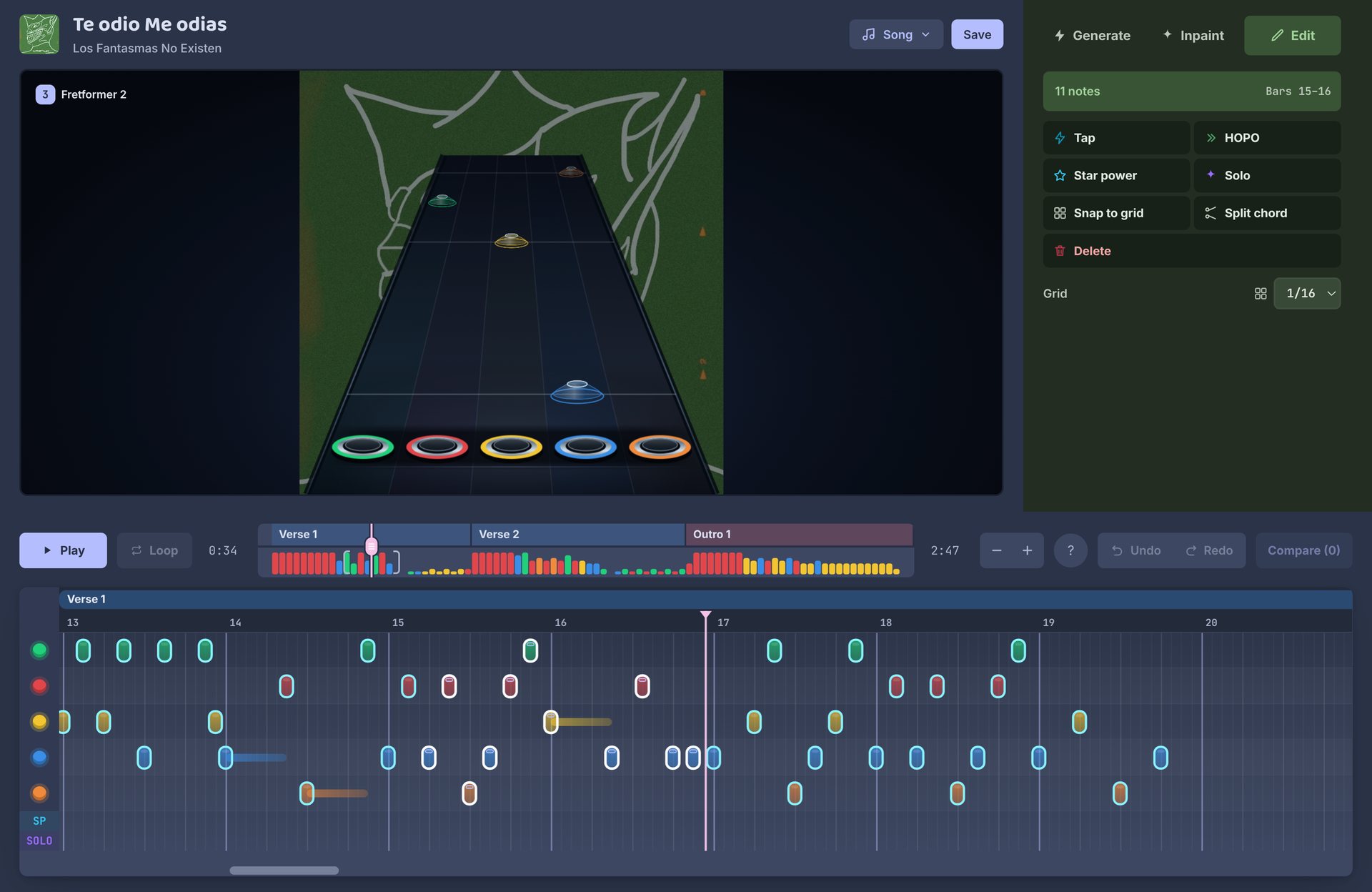
The Edit tab is a piano roll for fixing notes by hand. Use it for the small things a new take or Inpaint wouldn't fix, like one wrong note or a missing star power phrase.
Start
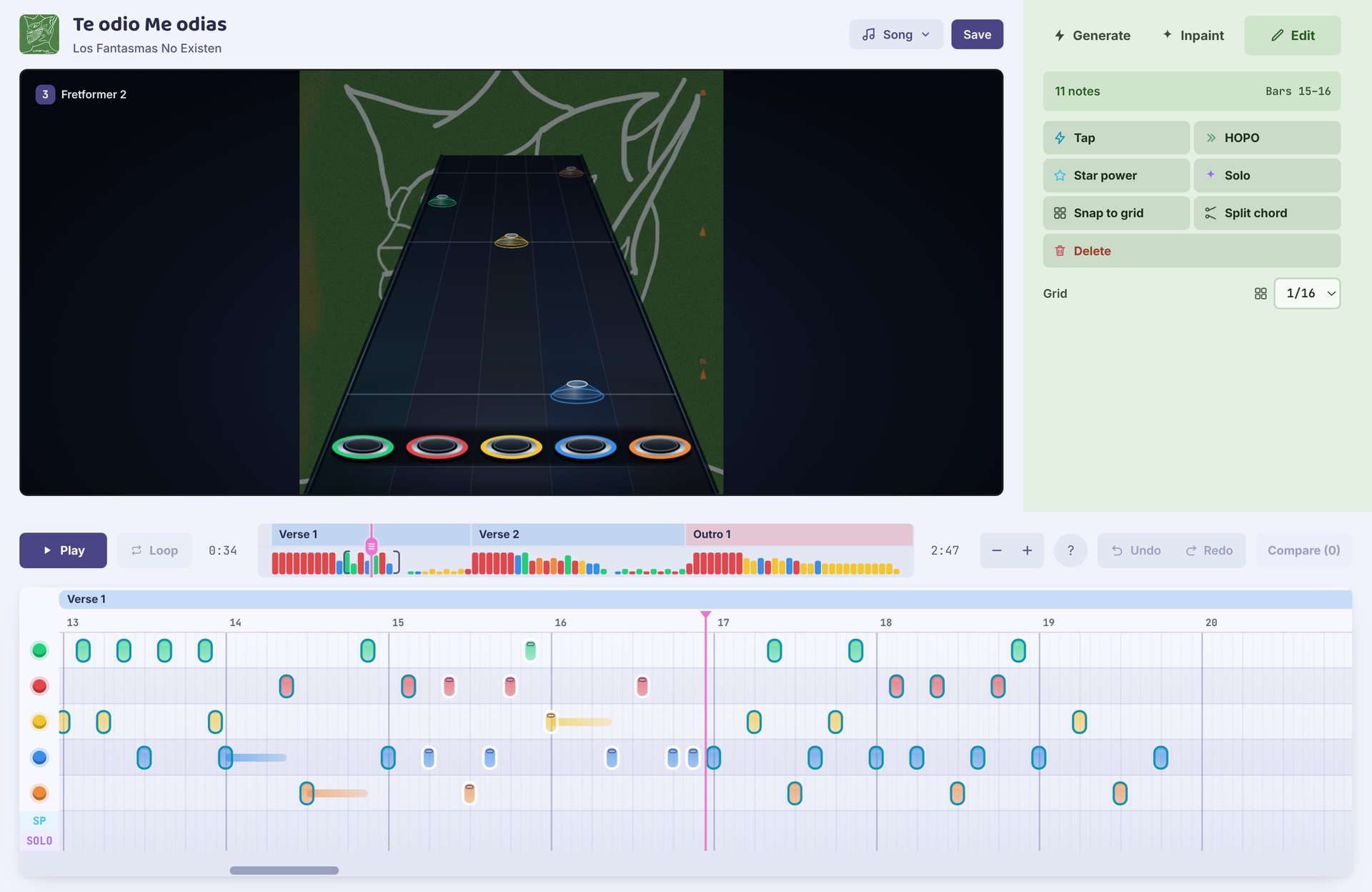
Pick a take and open the Edit tab, or press Tab on the Inpaint tab. The highway above plays what you're editing, so you can hear each change right away.
The roll has one row per fret, green to orange, with star power and solo phrases below. The song map at the top shows the sections: click one to jump there.
Notes
| To | Do this |
|---|---|
| Add a note | Click empty space in the roll. Click the other frets at the same spot to build a chord. |
| Select notes | Drag a box around them. Shift-click adds to the selection. |
| Move notes | Drag them. |
| Make a sustain | Drag a note's end. |
| Delete notes | Right-click, or select and press Del. |
Note tools
Select notes, then use the buttons beside the roll or their keys.
| Tool | Key | What it does |
|---|---|---|
| Tap | T | Makes the notes taps. |
| HOPO | H | Flips the notes between strum and hammer-on / pull-off. |
| Star power | S | Makes a star power phrase over the notes. |
| Solo | Marks the notes as a solo section. | |
| Snap to grid | Q | Moves the notes onto the grid. |
| Split chord | Spreads a chord out into single notes. | |
| Delete | Del | Deletes the notes. |
Grid
New and moved notes snap to the grid: off, or 1/4 down to 1/32, including triplets (1/12 and 1/24). Pick it under the note tools.
Saving
Edits save as you go, into an edited copy of the take (Edit 1, Edit 2…). The take you started from is never changed, so you can always go back to it. Put the edited copy in the final chart like any other take.
Ctrl Z undoes and Ctrl Shift Z redoes.
Mouse and keys
The ? above the roll shows these too.
| Key | What it does |
|---|---|
| Space | Play / pause |
| [ ] | Previous / next section |
| L | Loop |
| T H S Q | Tap, HOPO, star power, snap |
| Del | Delete notes |
| Tab | Switch to Inpaint |
| Ctrl Z | Undo |
| Esc | Clear the selection |
| Wheel / Ctrl + wheel | Scroll / zoom the roll |