Inpaint
Inpaint rewrites the parts of a take you don't like and keeps the rest. It hears the whole song and the notes around your pick, so the new part fits in.
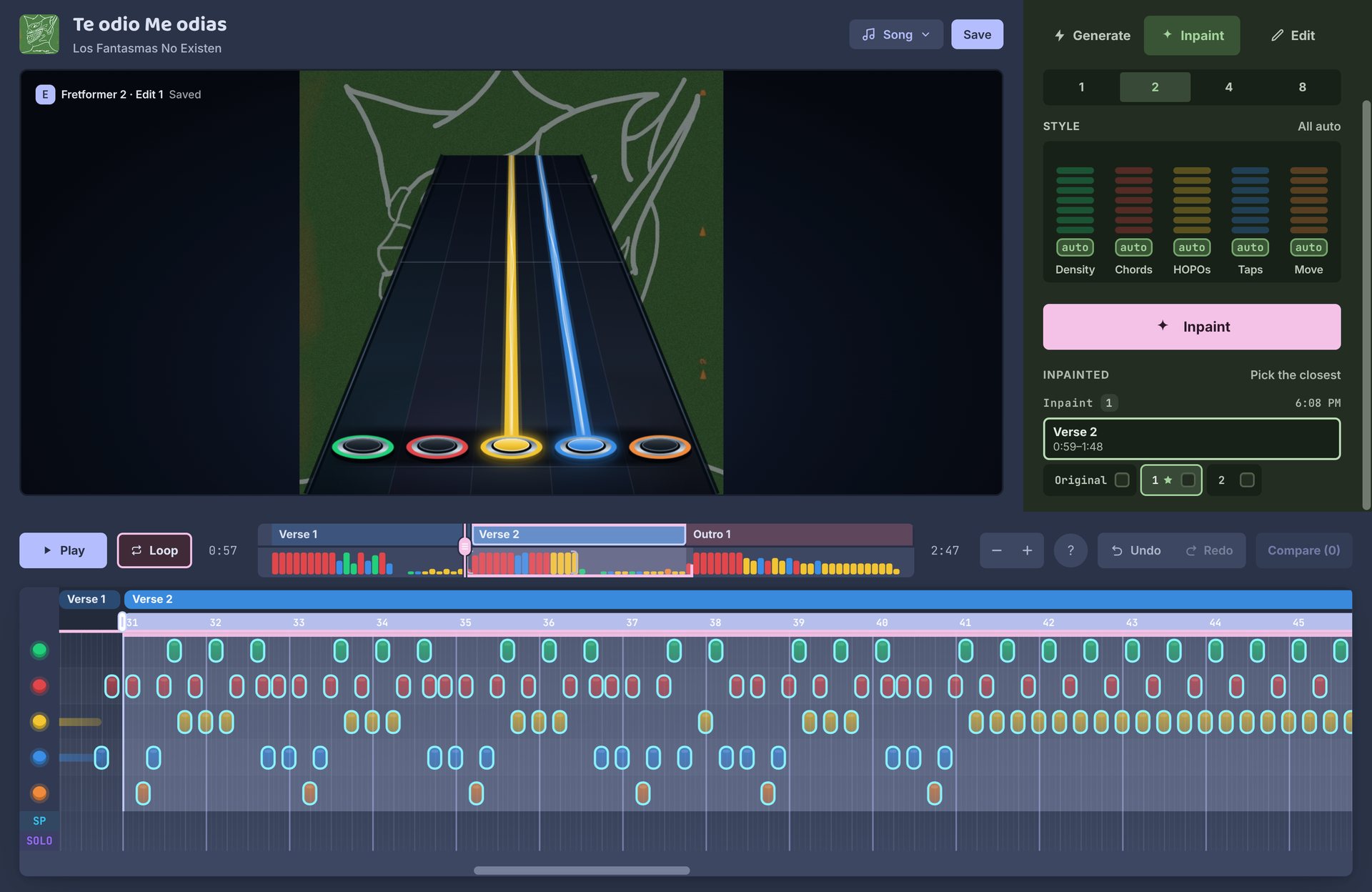
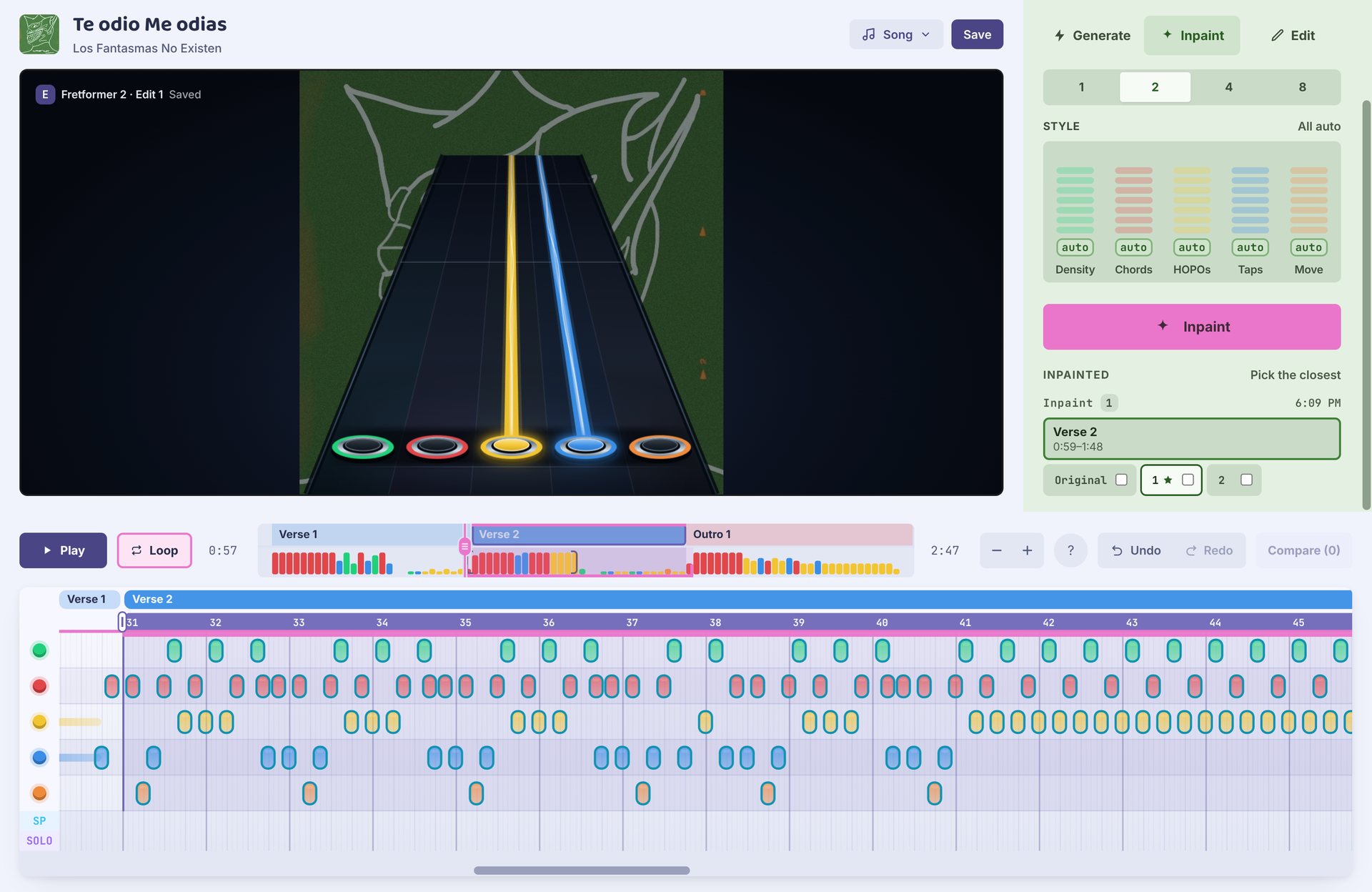
Start
- Open the take. Pick a take and open the Inpaint tab (Tab switches between Inpaint and Edit).
- Pick bars. Click a section on the song map, such as Verse 2, or drag across the piano roll.
- Inpaint. Press Inpaint (R). The new notes are written into the roll as you watch.
The result goes into an edited copy of the take (Edit 1, Edit 2…), so the original take stays as it was. Inpaint comes with Fretformer 2. In the browser it downloads the first time you use it. Fretformer 1 can't redo part of a chart.
Repeated parts
Inpaint reads the chart around your pick, including every other place that part comes up. So if a part repeats and you rewrite only one copy, the new one tends to come back looking like the copies you kept.


Here, Verse 1, Verse 2 and Outro 1 all open with a red stretch. The music is similar at those spots, so the model probably charted them alike. Verse 2 was just rewritten on its own and it still opens red, likely because the other two were there to copy.
To change that part, pick all three red stretches and inpaint them together.
- To change every repeat, pick all of them, as above. They're written left to right, and each one hears the new notes before it.
- To keep them alike, press Pick the closest after a run. It switches repeated sections to the tries that look most alike.
- To make one differ, use more tries and flip through them.
Picking bars
The song map at the top shows the sections and how busy each part is. Picks snap to whole bars. You can pick several areas at once, and they're rewritten left to right.
| To | Do this |
|---|---|
| Pick a section or bar | Click it. Click again to unpick. |
| Pick any bars | Drag across the roll. |
| Unpick bars | Drag over picked bars, or right-drag. |
| Move a pick | Drag its block in the bar row. |
| Resize a pick | Drag its grips, or click its arrow to stretch it to the end. |
Tries
Each area gets this many tries: 1, 2, 4 or 8. Default: 1. Inpaint keeps the one that fits best and lets you flip through the rest. More tries take longer.
The style faders work as in Generate, and the two tabs share them.
Results
Every run is listed under Inpainted, with its areas. Flip an area between Original and each try to hear them; the one marked Our pick fit best.
Loop (L) repeats the area the playhead is in, so you can flip tries while it plays. Changed your mind? Ctrl Z undoes your last change, picks included.
If you edited notes by hand in an area, Inpaint asks before replacing them.
Mouse and keys
The ? above the roll shows these too.
| Key | What it does |
|---|---|
| R | Inpaint the picked bars |
| Space | Play / pause |
| [ ] | Previous / next section |
| L | Loop |
| Tab | Switch to Edit |
| Ctrl Z | Undo |
| Esc | Clear the picks |
| Wheel / Ctrl + wheel | Scroll / zoom the roll |